• Skip to main content
  • Skip to header right navigation
  • Skip to site footer
Howcast

Howcast

The best source for fun, free, and useful how-to videos and guides.

  • Arts & Crafts
  • Entertainment
  • Food & Drink
  • Health
  • Home & Garden
  • Relationships
  • Explore Guides
  • Contact
  • About
  • FAQs
  • Explore Guides
  • Arts & Crafts
  • Entertainment
  • Food & Drink
  • Health & Wellness
  • Love & Relationships
  • Home & Garden

Digital Photography 101

Learn how to use a digital camera and pick up some digital photography tips and techniques with these Howcast videos.

Explore the Latest Digital Photography 101 Guides
▼

The Latest Digital Photography 101 Tutorials


How to Create an Animated Gif Using Photoshop

Instructions Step 1: Start a new composition Open your images in Photoshop. Start a new composition by going to File, New, and then setting the image to your desired size. Step 2: Unlock the background layer Double click on the Background layer in the Layers window to unlock it. Click Okay when prompted to change …
Learn HowHow to Create an Animated Gif Using Photoshop

How to Make Life Easier Using a Digital Camera

Instructions Step 1: Use it for rentals Snap photos of the existing blemishes on rental cars and in apartments to protect yourself from having to pay unwarranted fees or losing a security deposit. Step 2: Find your way back Take pictures of landmarks and signs near your hotel or parking spot when you travel to …

Learn HowHow to Make Life Easier Using a Digital Camera

How to Share Digital Photos Online

Instructions Step 1: Choose photos Choose your digital photos. Whether they are on your digital camera, computer, or from your scanner, choose which photos you’d like to share online. TIP: If pictures aren’t saved on to your computer, you will need to connect the camera to the computer and upload them first. Step 2: Choose …

Learn HowHow to Share Digital Photos Online

How to Use a Digital Camera

Instructions Step 1: Learn about megapixels Learn about megapixels. A megapixel refers to the resolution of the image a camera takes, or the dots that make up the quality of the image. The larger the number of megapixels, the higher the quality. Step 2: Adjust quality settings In the menu, adjust the quality settings of …

Learn HowHow to Use a Digital Camera

How to Make People Naked with Photoshop

Instructions Step 1: Choose a photo Scan a picture to manipulate. People wearing tops of lighter tones or sheer fabric Photoshop the easiest. Almost make sure the original photo used flash. Step 2: Open in Photoshop Open the picture in Photoshop and use the pen tool or the “Magnetic Lasso” tool to select the area …

Learn HowHow to Make People Naked with Photoshop

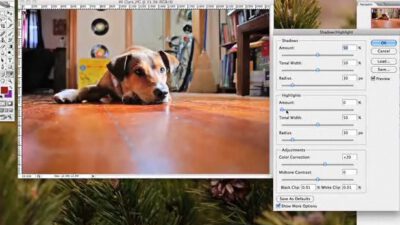
How to Lighten & Darken in Photoshop

Instructions Step 1: Open the photo Open your photo in Photoshop. Click File, Save As in the top menu bar, and rename the file so that you’re working on a copy, instead of the original. Step 2: Open Shadow/Highlight Open the Shadow/Highlight Adjustment by choosing Image, Adjustments, Shadow/Highlight from the top menu bar. Click Show …

Learn HowHow to Lighten & Darken in Photoshop

How to Transfer Super 8mm Film to Your Computer

Instructions Step 1: Place projector and camera Place the projector and camera side by side, 4-6 feet from the wall. Step 2: Frame projection in viewfinder Power up your video camera. Then, turn the projector lamp on. Finally, frame the projected image through the viewfinder in your camera. Step 3: Load your film Attach your …

Learn HowHow to Transfer Super 8mm Film to Your Computer

How to Buy a Digital Camera

Instructions Step 1: Set your budget Decide how much you want to spend. TIP: Your goal is to find the best camera in your price range. Step 2: Think about your needs Think about what you want to do with your digital camera. Do you want to be able to take pictures at night? Make …

Learn HowHow to Buy a Digital Camera

How to Convert Old Photos to Digital

Instructions Step 1: Organize your photos Before scanning, organize your photos – and slides and negatives, if you have them – into logical groups. This will make renaming and labeling them much easier later on. Step 2: Clean your photos Using a soft photography or makeup brush, gently clean your photos. Any dirt or smudges …

Learn HowHow to Convert Old Photos to Digital

How to Make a Camcorder Stabilizer

Instructions Step 1: Begin building bottom Attach two 45-degree elbow connectors to either end of a 6-inch PVC pipe. This will be the bottom of your camcorder stabilizer. Step 2: Attach T-connector Add a piece of 2½-inch PVC pipe to each connector’s open end and then attach a T-connector to both. Step 3: Connect PVC …

Learn HowHow to Make a Camcorder Stabilizer

How to Back Up Digital Photos

Instructions Step 1: Open photo folder If you have Windows XP, open the folder where photos are stored. If the Picture Task area is not showing on the left side, click Tools, then Folder Options. TIP: Set up a monthly reminder for yourself so you get in the habit of backing up new photos. Step …

Learn HowHow to Back Up Digital Photos

How to Use Flickr

Instructions Step 1: Go to flickr.com Go to www.flickr.com and click ‘Create Your Account.’ Step 2: Make a Yahoo! ID At the next page, sign up for a free a Yahoo! ID or sign in if you already have one. Step 3: Create your Flickr account You’re now on an account creation page, with two …

Learn HowHow to Use Flickr

How to Take Great Pictures with Your Cell Phone

Instructions Step 1: Set your camera phone Set your camera phone to take the highest quality (and largest file size) photo possible. Step 2: Clean your camera lens Make sure your camera lens is clean—and that you know exactly where it is! Step 3: Arrange your subjects Arrange your subjects or scene as you see …

Learn HowHow to Take Great Pictures with Your Cell Phone

Copyright © 2026 · Howcast · All Rights Reserved · Powered by BizBudding Ventures with Springwire.ai

Privacy Manager